Cashier Half Page
Pavilion's payment options can also be integrated into the operator's mobile app cashier page for cleaner patron experience.
Patron Experience
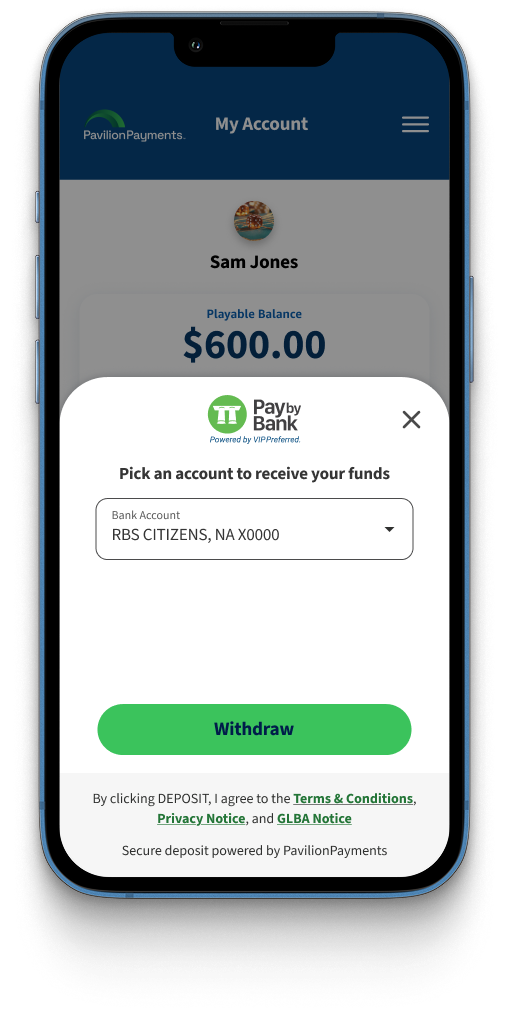
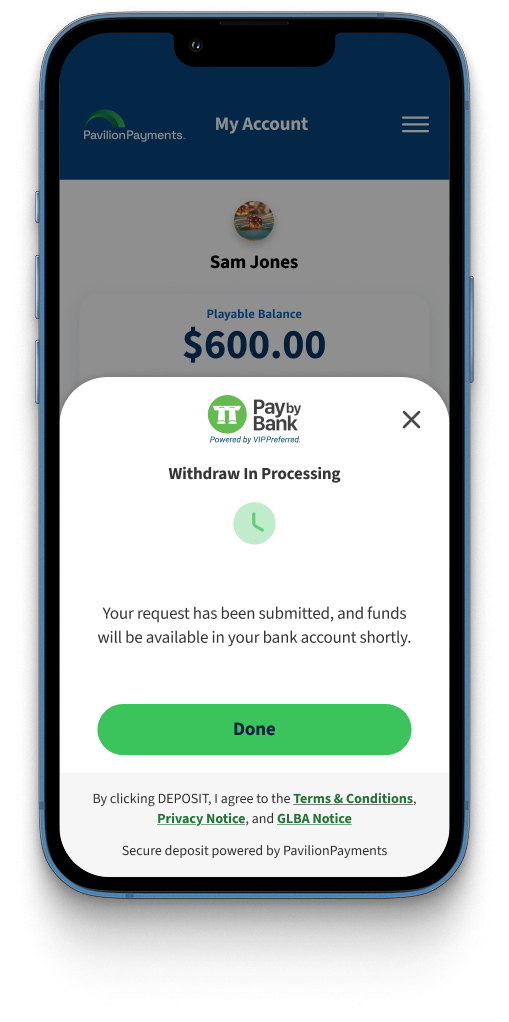
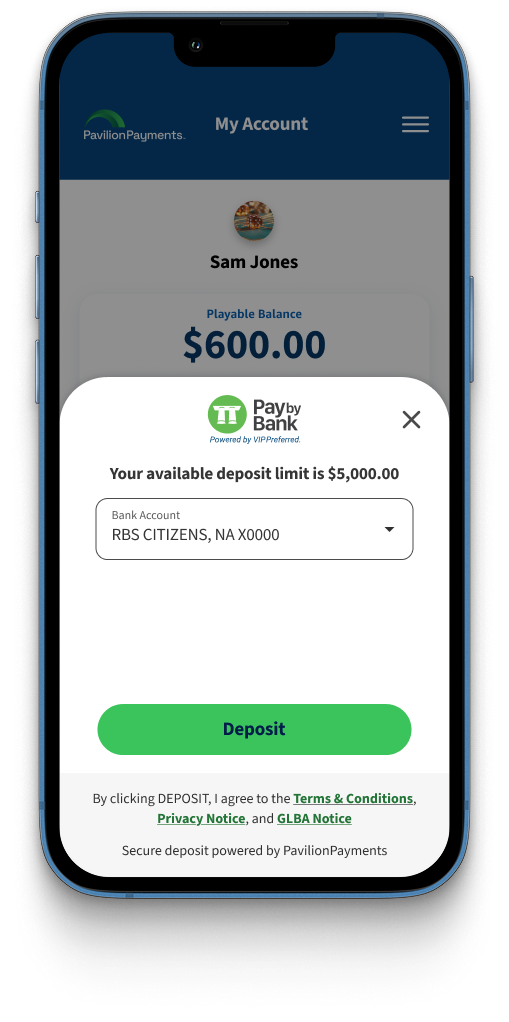
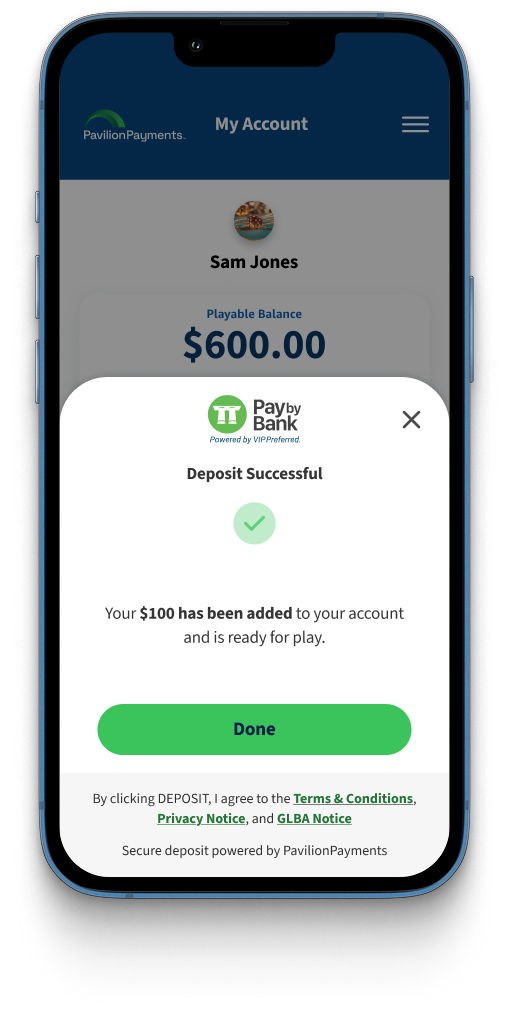
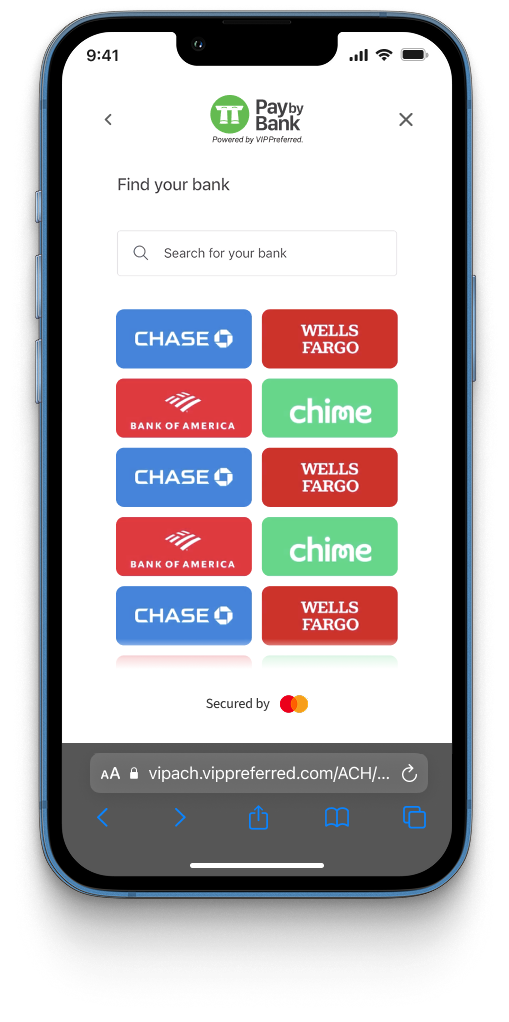
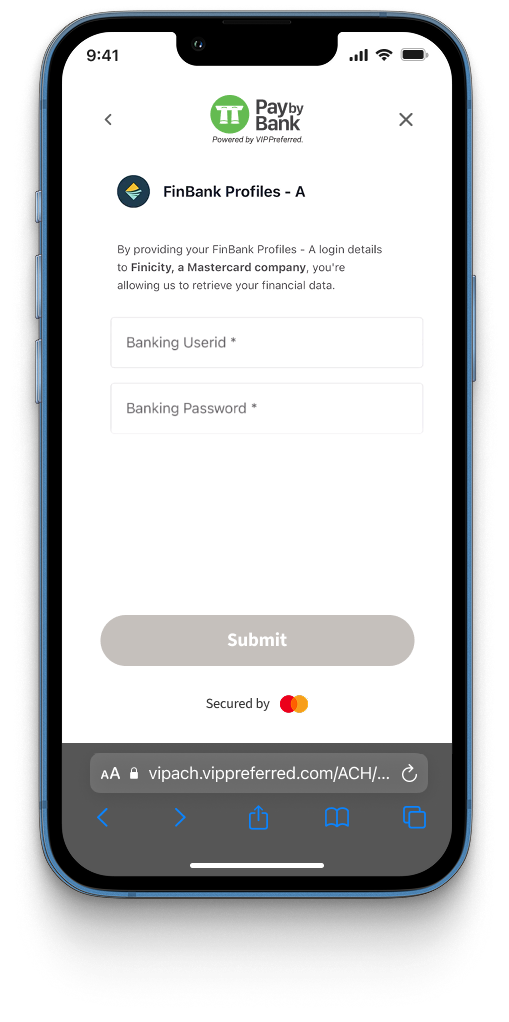
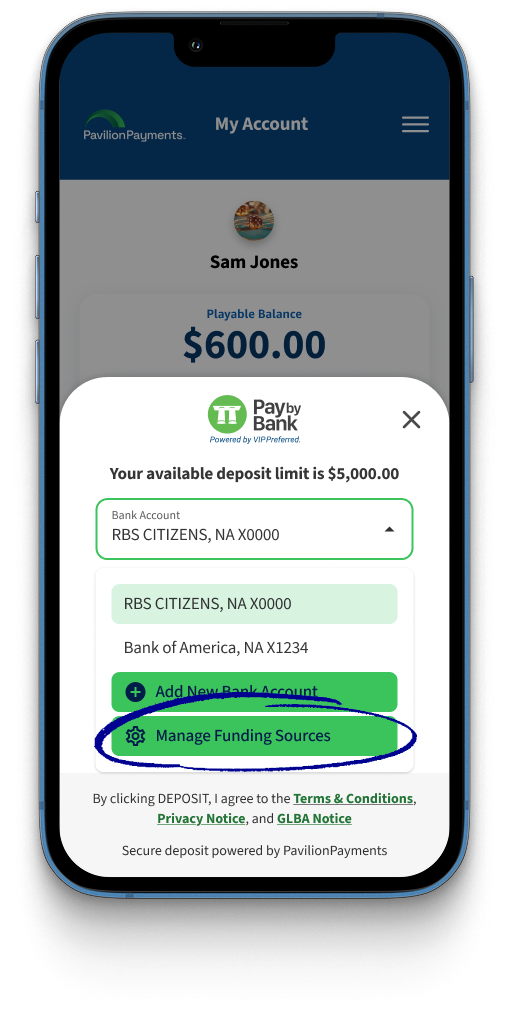
When utilizing the half-cashier view, the following screenshots demonstrate the view.
Integration Steps
Step 1. Embed VIP Connect SDK into your cashier page.
Step 2. Invoke the web component with the parameter view=cashier.
https://api-gaming.paviliononline.io/sdk?mode=deposit&view=cashier#session-id
Step 3. Add a mechanism to invoke the full screen view when the patron selects Add or Manage Bank Account. Follow the steps in iOS Integration or Android Integration.
Step 3 is essential because managing and adding a bank account can only be done in full screen view.
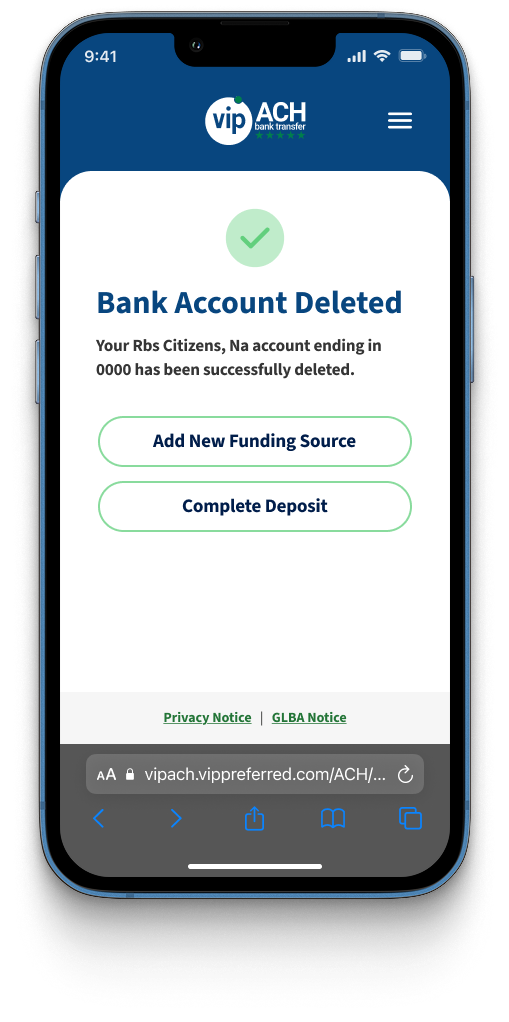
Account Management Flow
Step 1. Patron selects Add or Manage Bank Account in half-page view.
Step 2. Operator app listens for callback.
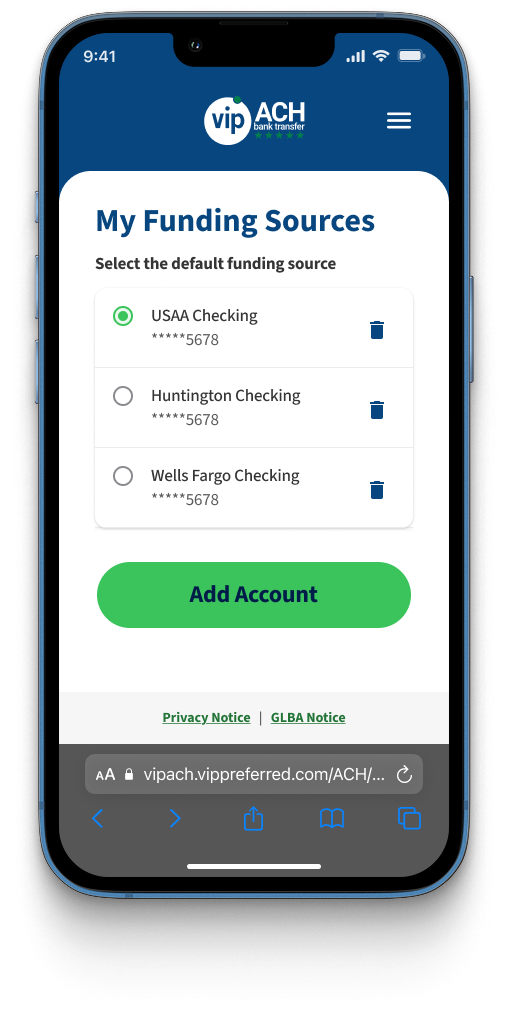
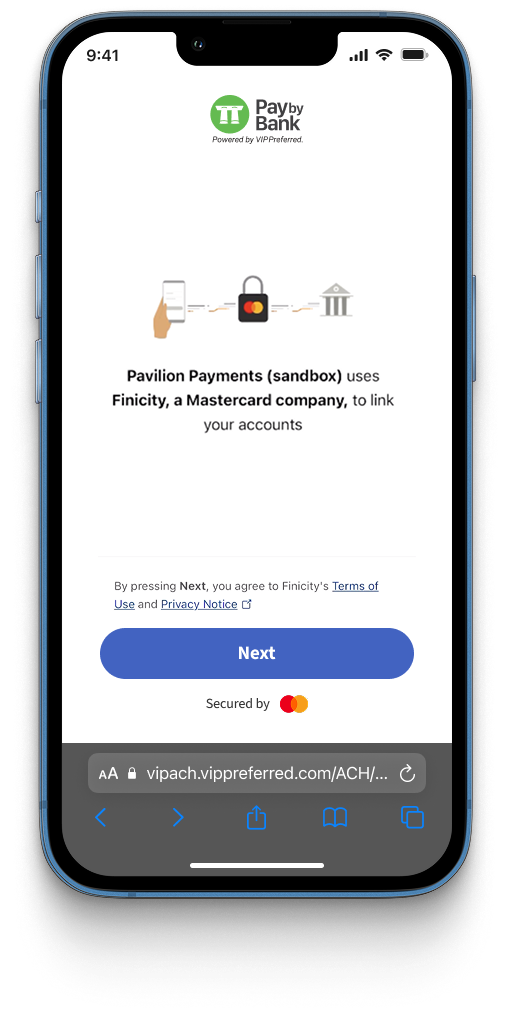
Step 3. Operator app relaunches VIP Connect in full screen.
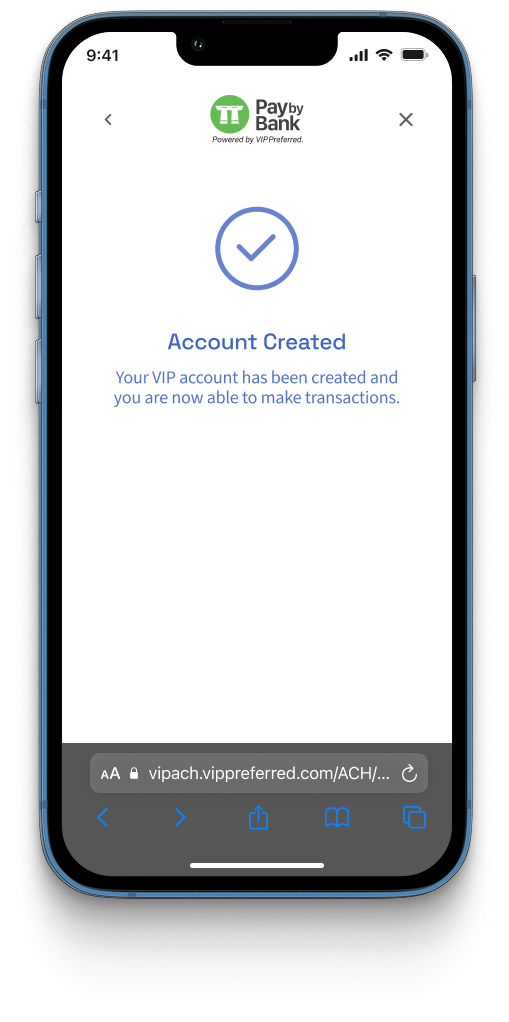
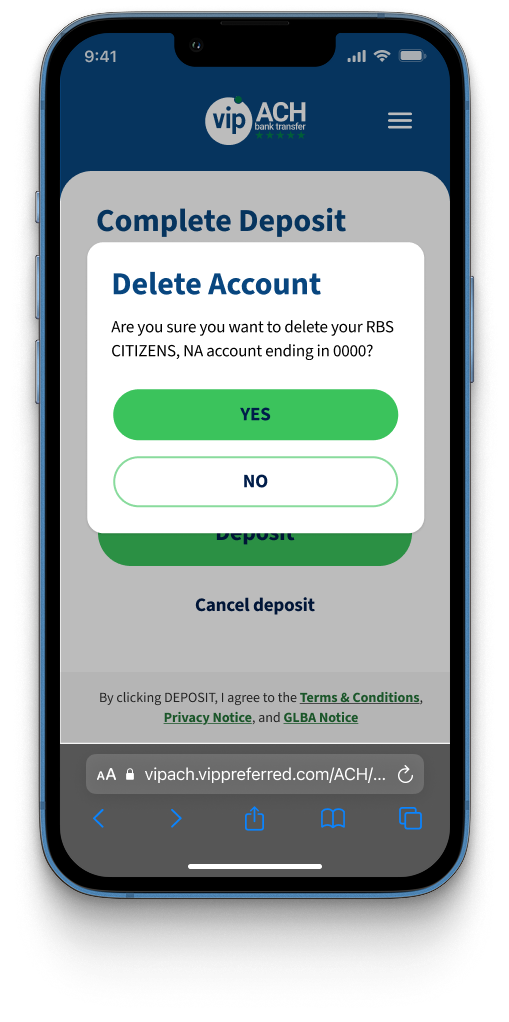
Step 4. Patron manages bank account(s).
Step 5. Flow returns to half-page cashier view and the transaction continues.
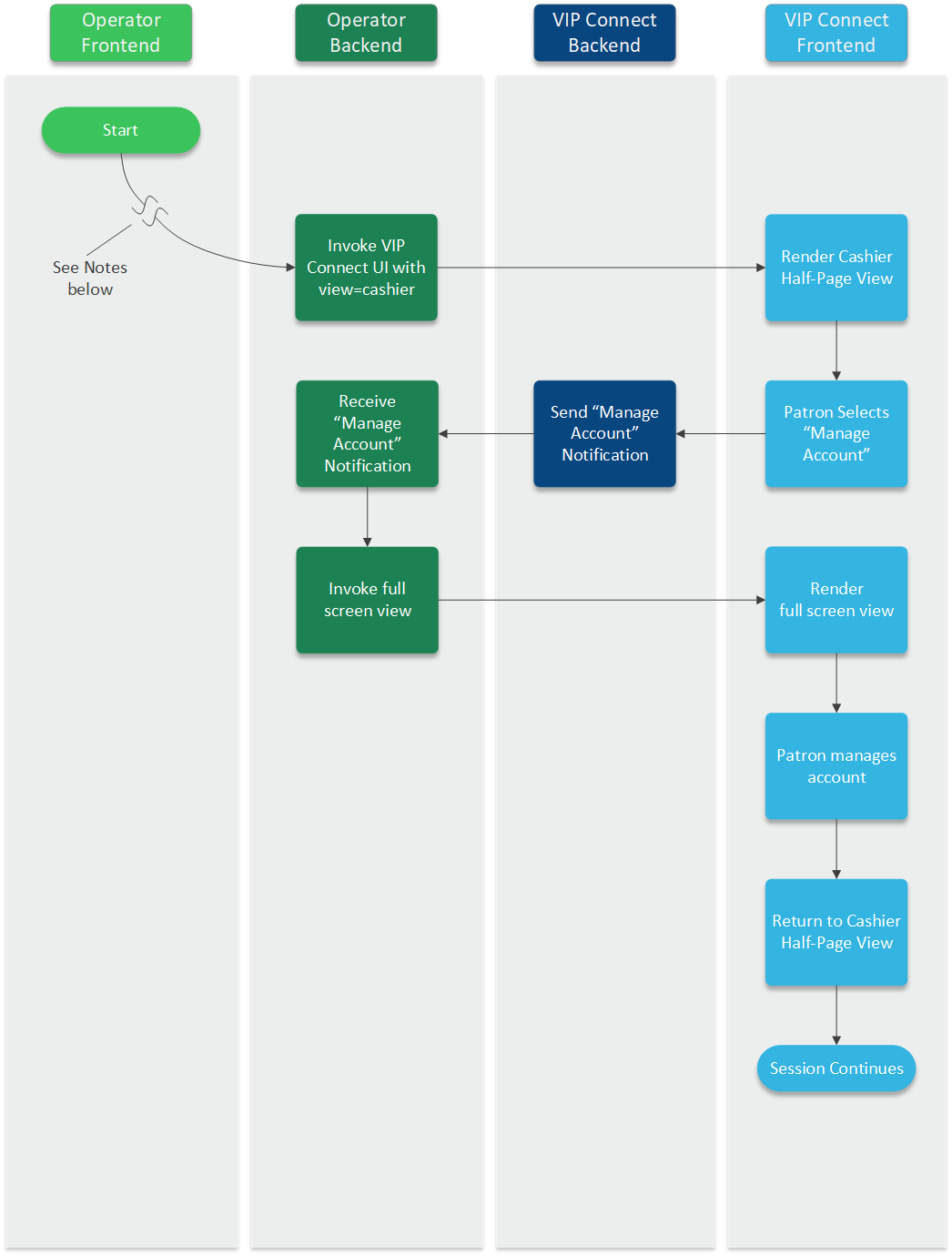
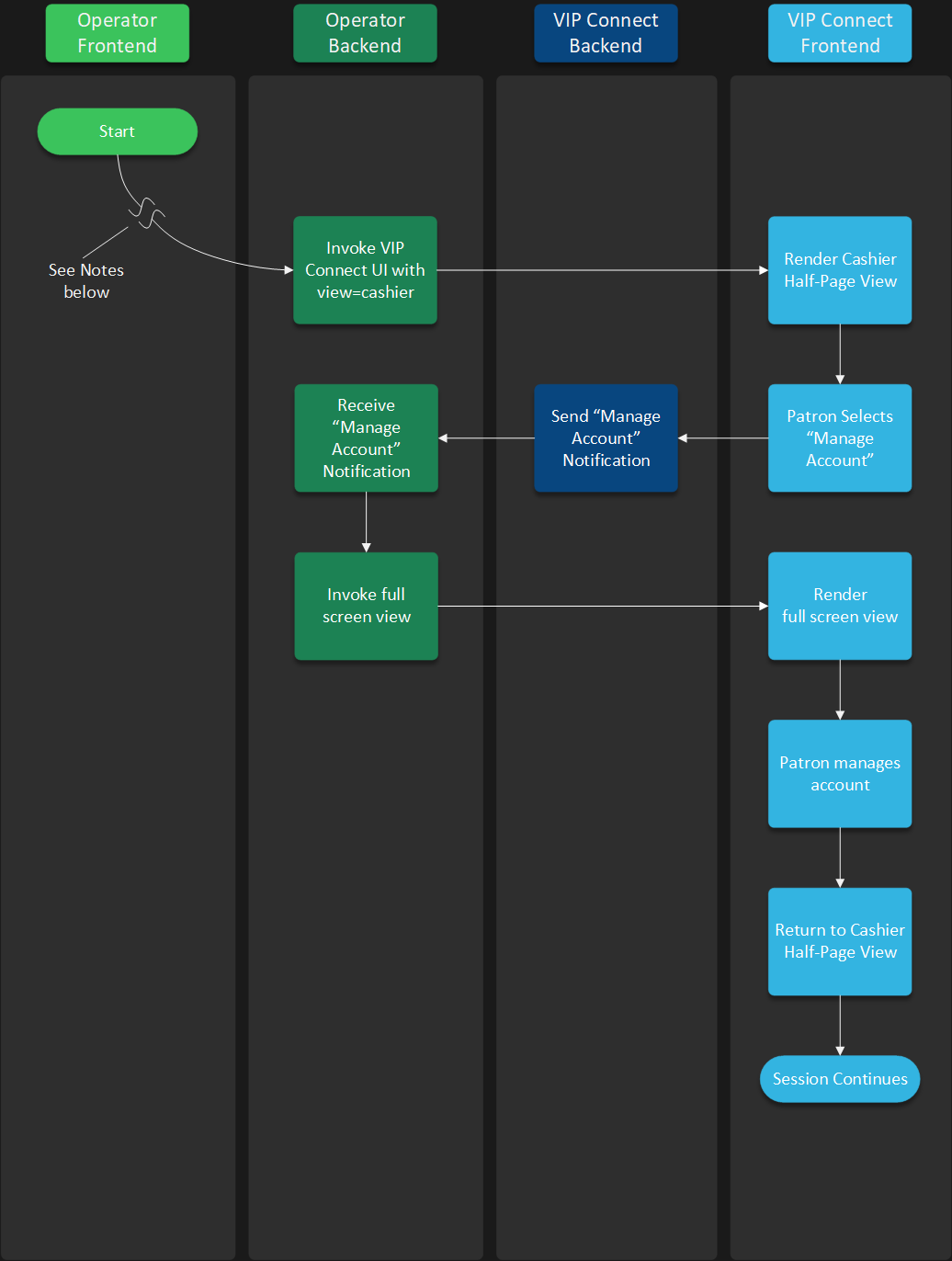
The flow above only represents what happens when an existing patron manages their bank accounts in VIP Connect. For the complete flow, see Pay By Bank.
The following images represent the patron's view of the specified flow.
iOS Integration
Managing and adding a bank account can only be done in full screen view. When using the half-page cashier view, operator apps must:
- Listen for the JavaScript callback event that is fired when a patron selects
Add or Manage Bank Account - Reopen VIP Connect in full screen mode when the callback is triggered
https://api-gaming.paviliononline.io/sdk?mode=deposit#session-id
Step 1: Listening for the request to launch in full screen
Configure some object to implement the WKScriptMessageHandlerWithReply protocol, and have that object launch in full screen mode when the "opensdk" message body is found:
class SampleScriptListener: NSObject, WKScriptMessageHandlerWithReply {
    public func userContentController(_ userContentController: WKUserContentController, didReceive message: WKScriptMessage, replyHandler: @escaping (Any?, String?) -> Void) {
        if (message.body as? String) == "opensdk" {

            // Launch full screen view
            // for example,
            //
            // myDelegate.onfull screenRequested()

            return
        }

        replyHandler(nil, nil)
    }
}
Then set that object as the WKWebview's script message handler with the name "NativeBridge":
yourWKWebview.configuration.userContentController.addScriptMessageHandler(SampleScriptListener(), contentWorld: .page, name: "NativeBridge")
The message listener does not need to be a new class, it could also be implemented as an extension on any appropriate object your app is using.
Step 2: Launching the view in full screen
After hearing the request to launch VIP Connect in a full screen view, have your ViewController show a full screen webview, and have that webview relaunch the VIP Connect SDK.
Your app can create and launch the full screen webview however you wish; one simple way to do it would be to present a simple UIViewController that contains only a full screen webview, and have that UIViewController launch the correct URL on load:
class ViewController: UIViewController {

    // ...

    private func onfull screenRequested() {
        let vc = Afull screenWebViewController()
        vc.initialURL = URL(string: "\(Config.VIPConnectHost)?mode=\(transactionType)#\(currentSession)")
        self.show(vc, sender: self)
    }

    // ...
}
When reopening in full screen, always use the same session ID.
Remove the view=cashier parameter.
With these steps complete, if the patron tries to add or manage an account in Cashier Mode view, the app will reopen VIP Connect in a larger view, and the patron will be able to continue their flow.
Android Integration
Managing and adding a bank account can only be done in full screen view. When using the half-page cashier view, operator apps must:
- Listen for the JavaScript callback event that is fired when a patron selects
Add or Manage Bank Account - Reopen VIP Connect in full screen mode when the callback is triggered
https://api-gaming.paviliononline.io/sdk?mode=deposit#session-id
Step 1: Listening for the request to launch in full screen
On Android, you’ll need to set up a JavaScriptInterface and inject an event listener into the VIP Connect pages. Below is a sample implementation.
Create a class to serve as a JavaScriptInterface (or use an existing class, if you have one) and add the following method to it:
internal class JavaScriptInterface(
    private val webView: WebView,
    private val full screenHandler: () -> Unit,
) {
    @JavascriptInterface
    fun consumeWindowMessage(name: String?, payload: String?) {
        if (payload == "opensdk") {
            webView.context.findActivity()?.runOnUiThread {
                full screenHandler()
            }
        }
    }
}
Then set that object as the WebView's JavaScriptInterface with the name "Android":
@SuppressLint("SetJavaScriptEnabled")
theWebview.settings.javaScriptEnabled = true
theWebview.settings.domStorageEnabled = true

val jsNativeInterface = JavaScriptInterface(
    webView = theWebview,
    full screenHandler = { ... }
)
    addJavascriptInterface(jsNativeInterface, "Android")
Additionally, add this code to inject a JavaScript event listener into the VIP Connect pages:
theWebview.webViewClient = object : WebViewClient() {
    override fun onPageFinished(view: WebView?, url: String?) {
        super.onPageFinished(view, url)
        evaluateJavascript("""
            window.addEventListener("message", (e) => { window.Android.consumeWindowMessage(e.name, e.data); });
            """,
            null,
        )
        onLoadingChange(false)
    }
}
Step 2: Launching the view in full screen
After hearing the request to launch VIP Connect in a full screen view, have your Activity show a full screen webview, and have that webview relaunch the VIP Connect SDK.
Your app can create and launch the full screen webview however you wish; one simple way to do it would be to present a simple Fragment that contains only a full screen webview, and have that Fragment launch the correct URL on load.
When reopening in full screen, always use the same session ID.
Remove the view=cashier parameter.
With these steps complete, if the patron tries to add or manage an account in Cashier Mode view, the app will reopen VIP Connect in a larger view, and the patron will be able to continue their flow.