Native Integration on iOS
At the GitHub link below, Pavilion offers a reference implementation, a native VIP Connect Library for iOS and documentation to aid in the integration of Plaid into an operator's mobile application.
https://github.com/PavilionPay/iGaming-iOS
See the README.md file in the repository for how to get started.
Legacy
Plaid has been replaced by Finicity. The following are legacy, unsupported flows.
Plaid Redirect for iOS - Handled by VIP Connect (recommended)
-
Operator shares the Apple Application Identifier Prefix, and the Bundle Identifier of each app to Pavilion. Both of these values can be found in the Identifiers section of the Apple Developer site. A sample AAIP might look like
88MPW8R88P, and a Bundle Identifier will look likeorg.example.testapp. Pavilion will add your app and the associated Universal Links to our hosted AASA file, which will enable the Universal Links the SDK will use to return after an OAuth flow. -
Secondly, operators will need to declare the capability to receive URLs from the associated domain within their app. Instructions for this can be found at Apple's site here, and Pavilion's iOS example app also declares them in its entitlements file for reference. The domains you need to declare will be
Production:
applinks:api-gaming.paviliononline.ioCert:
applinks:cert.api-gaming.paviliononline.ioOnce these two steps are completed, then OAuth flows that occur outside your WebView will automatically return to your app once they are complete, without any additional patron interaction.
-
Launch the Web Component as below:
Production:
https://api-gaming.paviliononline.io/sdk?mode=deposit#session-idCert:
https://cert.api-gaming.paviliononline.io/sdk?mode=deposit#session-id
Operator Managed Plaid Integration on React Native (not recommended)
This is an alternate solution for an operator to handle the Plaid redirect back to a native iOS app instead of allowing Pavilion to handle this. The VIP Connect web component can be displayed in a web experience or a native mobile app. If displaying the web component in a native app and also enableding Plaid, there are specific considerations with the Plaid OAuth integration. If the operator is displaying the web component inside a web experience then the below does not apply.
The examples below are for React Native. However, similar steps must be taken regardless of what Javascript framework was used to build the native app.
Example - Webview
In this example, a React Native UI uses an embedded webview (react-native-webview) to show the Web Component.
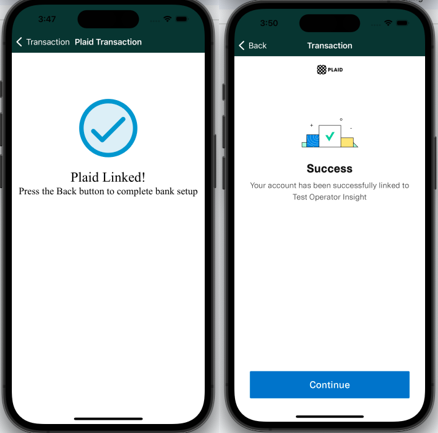
When the patron selects “Connect To Your Bank Account” and then taps “Continue to Login”, the Web Component navigates to a url containing “oauth-login”, the URL for authenticating with Plaid. When the webview property onShouldStartLoadWithRequest detects navigation to that path, it opens to a new React Native webview with the “oauth-login” url. For clarity, the two WebViews in screenshots below have different titles: “Transaction” for the Web Component and “Plaid Transaction” for Plaid.

Web Component Webview
// Web Component Webview
import WebView from "react-native-webview";
export default function WebComponentWebview () {
return <WebView
  // ...other properties
   onShouldStartLoadWithRequest={(event) => {
     if (event.url.includes("oauth-login")){
       navigation.navigate(PLAID_TRANSACTION_ROUTE, { uri: event.url })
       return false;
     } else {
       return true;
     }
   }}
   source={{
     uri: route // something like "oauth-login.example.plaid.com"
   }}
 />
}
Plaid Webview
There is no need to implement onShouldStartLoadWithRequest in the Plaid WebView because the patron will navigate back to the Web Component with the WebView’s back button after Plaid authentication is completed. The URI for the Plaid WebView comes from the event property in onShouldStartLoadWithRequest in the Web Component WebView.
// Plaid Webview
import WebView from "react-native-webview";
export default function PlaidWebview (route: string) {
return <WebView
  // ...other properties
   source={{
     uri: route // something like "oauth-login.example.plaid.com"
   }}
 />
}
Success Page
Once the patron goes through all the steps to authenticate with plaid, a success page is displayed with instructions to “Click the back button” in the current webview. Once the patron taps the back button, the app returns to the Web Component in the previous webview. After a few more selections in the Web , the Web Component is authenticated with the patron's bank, and the patron is able to make a deposit.
Example - New Window
In this example, a React Native UI uses an embedded webview to show the Web Component while Plaid is opened in a new window.
-
Operator creates an apple-app-site-association file and hosts it on a public site.
-
Operator configures their native app to leverage the apple-app-site-association file.
-
Share the universal links defined in the apple-app-site-association file with VIP Connect team.
-
The shared universal link(s) are registered in Plaid portal for verification and generating link token to launch the Web Component.
-
When launching the Web Component, add universal link as a plaidRedirect URL attribute to the URL as below –
Production:
https://api-gaming.paviliononline.io/sdk?mode=deposit&plaidRedirectUrl=https://somesite.com#session-idCert:
https://cert.api-gaming.paviliononline.io/sdk?mode=deposit&plaidRedirectUrl=https://somesite.com#session-id -
Plaid generates a link token based on the plaidRedirectUrl provided in the URL above which is then used to launch Plaid Screen.
-
Once successful login and account mapping, Plaid will redirect to the URL set in the plaidRedirectUrl attribute.
-
The universal link provided in the plaidRedirectUrl can be the mobile path of the Web Component on the Parent Site or any other page where redirection is handled at parent site.